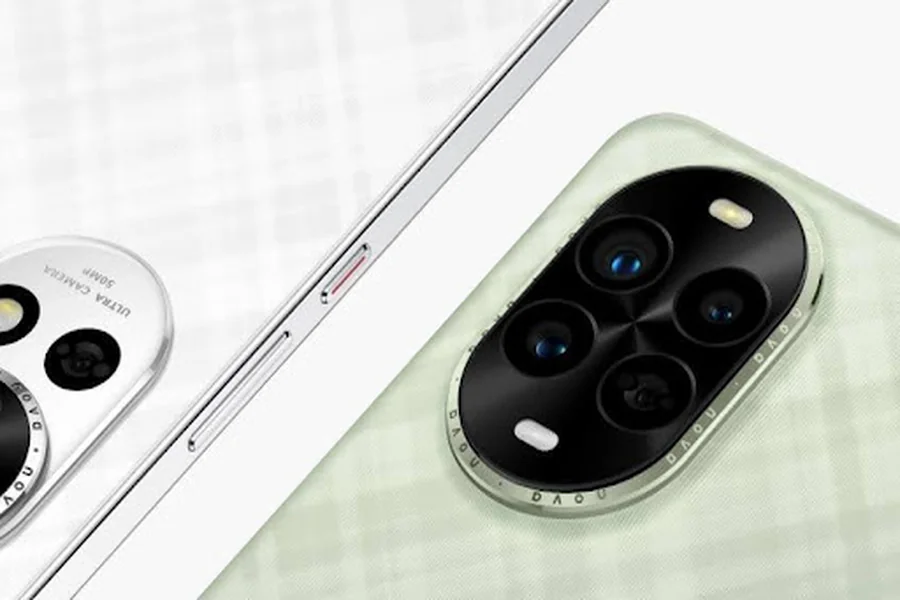
Installing Google Play on Huawei phones allows users to access millions of Android apps, connect seamlessly with Google services, and enjoy full app synchronization across devices. Huawei’s HarmonyOS and EMUI platforms make it simple to integrate Google frameworks when done through trusted methods. Once installed, the Play Store functions smoothly—enabling downloads, updates, and account synchronization just like on any Android device. This process doesn’t require advanced technical skills; it simply involves using reliable tools and enabling a few system settings. Let’s go step by step to see how users successfully install and activate Google Play on their Huawei phones.
Preparing the Device for Installation
Before beginning the installation, a few quick preparations ensure that the Huawei device is ready to integrate Google Play Services successfully.
Check System Updates and Permissions
Start by checking that your Huawei phone runs the latest HarmonyOS or EMUI version. Go to “Settings” → “System & updates” → “Software update.” Tap “Check for updates” and install any available version. Keeping the system current ensures compatibility with service frameworks and installation tools. Next, adjust app installation permissions. Navigate to “Settings” → “Security” → “More settings” → “Install apps from external sources.” Enable permission for “Files” or “Browser” (whichever you plan to use). This allows your phone to install verified packages outside of the AppGallery. Finally, clear temporary files by opening “Optimizer” → “Cleanup.” This step frees memory and prevents installation interruptions.
Back Up Important Data
Although installing Google Play is safe, it’s always smart to back up your device before adding new frameworks. Open “Settings” → “System & updates” → “Backup & restore.” Choose Huawei Cloud Backup or connect to HiSuite on your computer. HiSuite, Huawei’s official management software, lets you save your contacts, photos, messages, and app data securely. This ensures that even during system configuration, personal data remains protected. Once the backup completes, disconnect and reboot your phone. With your files stored safely, you can focus entirely on the Google Play setup steps, knowing your content is secure and restorable at any time.
Verify Network and Account Access
A stable network connection is vital for smooth installation. Confirm that Wi-Fi or mobile data is active and steady by opening a webpage or streaming a short video. Next, prepare your Google account details for sign-in later. It’s best to use an account that’s already active on another device to simplify verification. HarmonyOS supports encrypted data exchange, meaning login credentials are processed safely. If you use multi-device mode, you can also sync network preferences through Huawei’s distributed system, ensuring consistent connectivity throughout the process. Once connectivity and account readiness are confirmed, installation can begin smoothly.
Installing Google Play Step-by-Step
With the device ready, you can now install Google Play using reliable tools available through Huawei’s ecosystem or external frameworks.
Using GSpace for Easy Installation
GSpace is one of the most trusted methods for activating Google Play functionality. Available directly from Huawei’s AppGallery, it creates a secure virtual space that supports Google Services without modifying the system. To install, open AppGallery, search for “GSpace,” and tap “Install.” Once installed, open GSpace and follow the on-screen prompts to allow permissions. Within the app, tap “Add App” and select “Play Store.” GSpace automatically installs all necessary frameworks and prepares the environment. After setup, tap the Play Store icon inside GSpace. Sign in with your Google account to begin downloading apps like Gmail, Maps, and YouTube.
Installing Through Googlefier
Googlefier is another streamlined tool designed specifically for Huawei devices. Download the Googlefier APK file from a verified source and install it using your device’s file manager. Once open, grant all required permissions. The app then guides you step by step through installing Google Services Framework, Play Services, and finally, the Play Store. Each step is automated, with progress indicators to ensure clarity. Once completed, reboot your device and open the Play Store. You’ll be able to log in, browse apps, and install them freely. Huawei’s intelligent process manager ensures these apps integrate well with system resources, offering smooth operation and stable notifications.
Activating Services With microG
microG is a lightweight open-source alternative that replicates Google Play Services functionalities. For users who prefer a minimal setup, it’s an excellent choice. Install microG from a trusted repository, then enable required permissions under “Settings” → “Apps” → “Permissions.” Once launched, microG configures background frameworks for authentication, app syncing, and push notifications. Next, install the Play Store APK and log in with your Google account. microG ensures communication between the Play Store and Huawei’s HarmonyOS core, enabling app installation and synchronization. Because it’s efficient and battery-friendly, this setup keeps performance smooth and consistent.
Maintaining Smooth Operation After Installation
Once Google Play is installed, a few extra steps ensure everything continues to run seamlessly. These maintenance practices improve speed, stability, and app compatibility.
Keeping Frameworks and Apps Updated
Open the Play Store and go to your profile icon → “Settings” → “About.” Confirm that the Play Store and Play Services are up to date. If updates are available, tap “Update” to install them. HarmonyOS automatically manages background updates for installed apps, but users can check AppGallery for parallel updates to ensure compatibility between Huawei system apps and Google frameworks. Enabling “Auto-update apps over Wi-Fi” ensures apps stay current without using unnecessary mobile data. These updates enhance performance and enable access to new features across Google’s ecosystem.
Managing Battery Optimization and Background Access
Huawei’s intelligent battery system conserves energy by managing background processes. However, for continuous sync, Google Play Services should remain active. To configure this, open “Settings” → “Battery” → “App launch.” Locate Google Play Store and Play Services, then disable “Manage automatically.” Enable “Auto-launch,” “Secondary launch,” and “Run in background.” This ensures Google Play remains functional even when the phone enters sleep mode. HarmonyOS still optimizes power usage intelligently, ensuring the device maintains long battery life while supporting full app functionality.
Enhancing Security and Storage Management
Huawei’s security systems maintain a safe environment for all installed apps, including Google Play. Users can strengthen this by enabling “App Guard” in “Settings” → “Security.” This feature continuously scans for irregular app behavior. Additionally, use Huawei’s “Optimizer” → “Storage cleanup” to remove unused cache files periodically. Doing this preserves performance and storage efficiency. If you download multiple apps, consider moving media-heavy files to Huawei Cloud or an external SD card. This prevents internal storage overload and ensures apps launch quickly without lag. Regular maintenance keeps the system smooth, secure, and organized for daily use.

Conclusion
Installing Google Play on Huawei phones is straightforward when you follow the correct process. By preparing the device, using trusted tools like GSpace, Googlefier, or microG, and maintaining updates, users can enjoy a complete Google ecosystem experience. With how to install playstore in huawei clearly understood, users gain full access to Google’s vast library of apps without complexity. Huawei’s intelligent system optimization ensures that Google Play performs smoothly—turning every Huawei phone into a fully equipped, connected, and user-friendly device.