
Most online attacks do not start with a Hollywood-style hack. They start with small cracks: a visible IP address, a leaky browser, a weak password reused on several sites, or a fake ad that sends you to the wrong page. One tool cannot fix every problem, but a well‑configured VPN can close several of these cracks at once.
iTop VPN for Windows focuses on that side of protection. It encrypts traffic, hides your real IP, blocks common leak paths, and includes a set of extra tools that support safer browsing, streaming, gaming, and remote work.
What iTop VPN for Windows does
iTop VPN is a VPN app for Windows 11, 10, 8, 8.1, and 7. It routes your internet traffic through its servers while applying AES‑256 encryption and a strict no‑log policy.
It is designed as a free VPN option with fast connection, unlimited bandwidth, and private access to websites, streaming platforms, games, chat apps, and social media that might be blocked in your region.
Once installed, you connect by choosing a server and clicking the connect button. Your IP changes to the server IP, and traffic travels inside the encrypted tunnel.
What makes iTop VPN Special?
Encrypted tunnel and no‑log approach
iTop VPN uses high‑grade AES‑256 encryption for traffic to help prevent data from being intercepted by ISPs, government monitoring, and third‑party advertisers, and to give you a safer environment on public Wi‑Fi.
It also firmly sticks to a No‑Log Policy and does not track or record profile information.
Together, those two pieces mean outside observers should see only encrypted traffic going to a VPN endpoint, not your browsing content, and the service itself does not collect your profile details.
IP masking, flexible IP modes, and dedicated IP
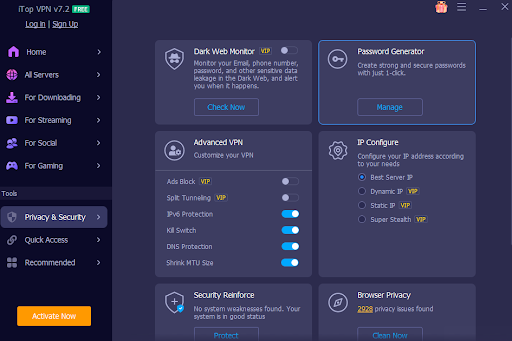
Once you connect, iTop VPN assigns a new IP address. It offers three main IP configuration types: best server IP (fastest or closest servers), dynamic IP, and static IP.
A Super Stealth feature under IP Configure provides a rotating IP address that helps you stay harder to trace with seamless IP changes.
If you need a stable address for specific use cases, iTop VPN also offers dedicated IP options in the US, UK, Canada, and Germany, so you can use the same exclusive IP address each time you connect in those regions.
Double VPN for layered routing
For users who want another layer, the Double VPN feature connects through two VPN servers at the same time and encrypts traffic twice.
In this mode, your IP is changed by the first server and your ISP cannot see which destination server you are reaching on the web.
Kill Switch for safe failure
Connections do not always stay perfect. If the VPN tunnel drops and your system falls back to a normal connection, your real IP and unencrypted traffic can appear.
iTop VPN includes a Kill Switch that automatically stops all internet traffic when the VPN connection switches off, and only restores it when the VPN reconnects.
That behavior helps prevent short leaks during momentary disconnects, especially on unstable Wi‑Fi.
Leak protection and browser privacy
DNS leak protection
DNS settings are a known attack surface. Some malware and rogue networks try to modify them and send traffic to fake sites.
iTop VPN includes DNS Leak Protection that provides strong protection to prevent system DNS settings from being modified and to reduce the risk of hijacking or spam by cybercriminals.
WebRTC leak protection
Modern browsers use WebRTC for real‑time communication. In some setups, this can expose your IP even when a VPN is active.
iTop VPN protects against WebRTC leaking your public and private IP addresses in browsers such as Firefox and Chrome.
IPv6 server support
Many networks now use IPv6 alongside IPv4. iTop VPN gives IPv6 connections higher priority and allows Windows devices to connect to servers with IPv6 protocol while maintaining security.
This keeps the VPN useful on networks that are slowly shifting traffic from IPv4 to IPv6.
Browser anti‑tracking and ad blocking
Beyond the VPN tunnel itself, iTop VPN includes:
- Browser Anti‑Tracking, which can automatically clean browser traces such as history and cookies for mainstream browsers, including Chrome, Firefox, Edge, Safari, IE, and Waterfox.
- Ads Block, which focuses on blocking malicious ads and pop‑ups, so you get a cleaner, safer browsing experience.
Cleaning traces and cutting suspicious ads lowers the chance of tracking and malicious redirects.
Extra defenses around identity and accounts
Dark Web Monitor
Account protection is tied closely to VPN use. If an email or phone number associated with logins appears in a leak, attackers can target those accounts.
iTop VPN’s Dark Web Monitor scans dark web sites for leaked information and alerts you when your email, phone, or other details are found.
Password Generator
Weak and reused passwords are still a common problem. iTop VPN includes a Password Generator that can create strong passwords with uppercase, lowercase, digits, and symbols, and shows password history with remarks for future reference.
Together with the Dark Web Monitor, this gives you a basic loop: generate stronger passwords and keep an eye on whether your data appears in known leaks.
Connection control, performance, and multi‑device coverage
Security is also about staying connected in a way that fits your network and devices.
- Protocol choices: iTop VPN supports TCP, UDP, and HTTPS protocols, giving flexibility when a network blocks certain VPN modes.
- Global servers: over 3200 servers in more than 100 locations, so you can connect from many regions.
- ARM support and device coverage: support for Windows on ARM devices such as Microsoft Surface and Samsung Galaxy, plus the ability to connect 8 devices at the same time per account.
- HTTP proxy service: once enabled on a LAN, other devices like Mac, iOS, Android, Xbox, Linux, PlayStation, and Nintendo Switch can pass their traffic through the VPN.
How to use iTop VPN for stronger security on Windows
Download and install
Go to iTop official Windows page and click the Free Download button: Run the installer, then open the application.
Connect to a secure server
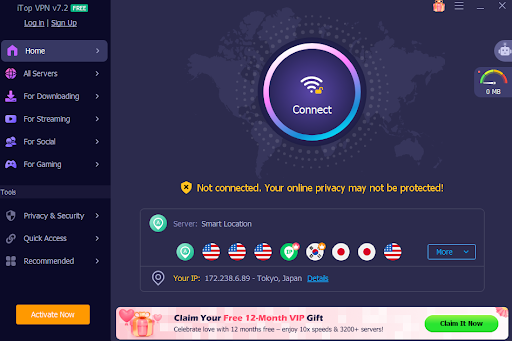
Select a location and click connect. For most users, smart location (fastest or closest) IP configuration is a good default.
If you need a stable address, choose a dedicated IP region. If you prefer more changing identities, pick the Super Stealth rotating IP option.
Turn on safety features
Enable the Kill Switch so traffic stops if the VPN drops.
Activate DNS Leak Protection and WebRTC Leak Protection inside the settings.
Turn on Browser Anti‑Tracking and Ad Block for safer browsing inside your regular browsers.
Adjust protocols and split tunneling
If a network blocks your connection, try switching between TCP, UDP, and HTTPS.
Use split tunneling when you want only certain apps, such as browsers or media players, to go through the VPN.
Use the identity tools
Open Dark Web Monitor and add emails or phone numbers you use for important accounts, so you receive alerts if they appear in leaks.
Use the Password Generator whenever you create a new account or change a password.
Final thoughts
Security on Windows is not a one-switch. It is a set of habits and tools working together. iTop VPN’s Windows app focuses on the network side of that picture with encryption, IP masking, leak protections, Kill Switch, browser cleanup, dark web monitoring, password tools, and flexible connection controls.
To try it, download iTop VPN for Windows from the official site, connect to a server, and then gradually turn on the security options that fit how you browse, work, and stream each day.